Accessing Application
This section explains how to sign in to Onion, reset your password, and access your account securely.
1. Sign In to Your Account
To sign in to Onion:
- Navigate to the application URL: https://dev.onion.gnapitech.org/
- Enter your registered email address.
- Enter your password.
- Click Sign In.
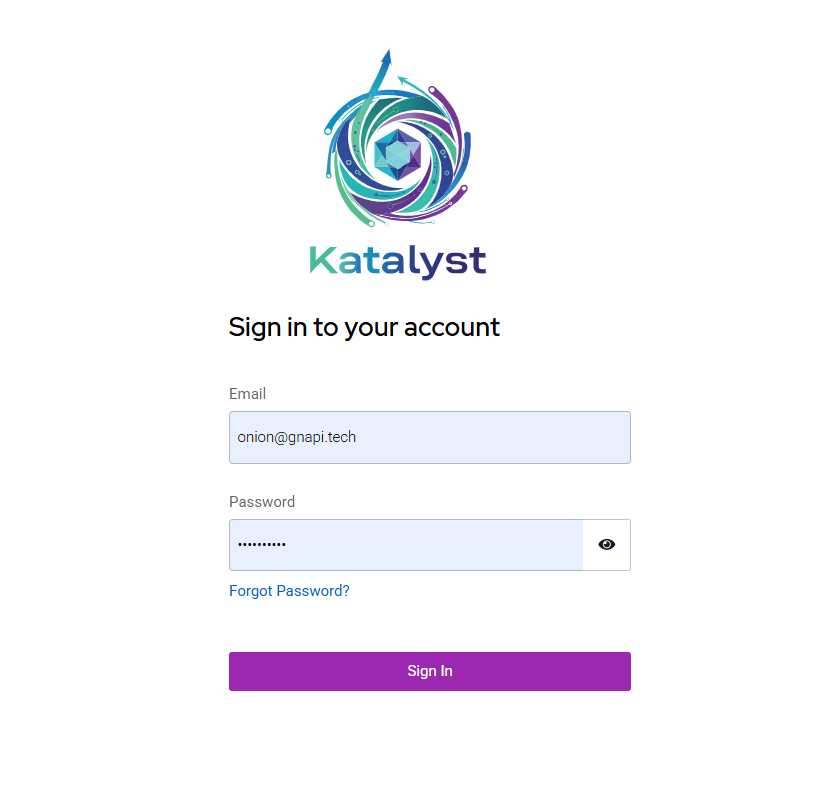
If the entered credentials are incorrect, an error message is displayed and you will be prompted to try again.
2. Forgot Password
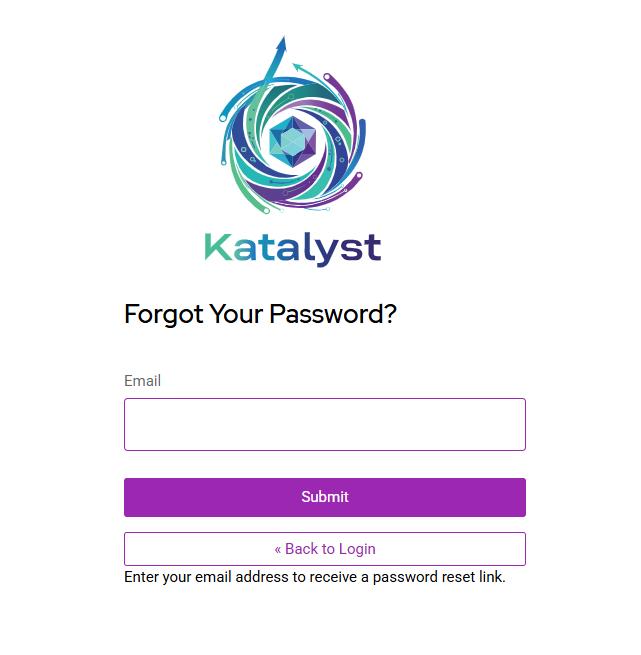
If you have forgotten your password, you can reset it using the Forgot Password option.
- On the Sign In page, click Forgot Password?
- Enter your registered email address.
- Click Submit.
- A password reset email will be sent to your registered email address.
- Follow the instructions in the email to create a new password.
3. Password Reset Email
After submitting your email address:
- A password reset link is sent to your inbox.
- The reset link is valid for a limited time.
- After resetting your password, return to the Sign In page and log in using your new credentials.
4. Sign In Troubleshooting
If you are unable to sign in:
- Verify that the email address is entered correctly.
- Ensure that Caps Lock is not enabled.
- Reset your password if necessary.
- Contact your administrator if your account is locked or inactive.